
If you run Shopping campaigns, a quick Audit Google Ads can reveal who’s eating your budget. In this guide you’ll learn how to audit every SKU in minutes, classify products as profitable or costly, and take action to restore healthy ROAS.
Table of Contents
- Why perform an Audit Google Ads right now?
- What the audit looks for: smart product segmentation
- How to run a 5-minute Audit Google Ads: step-by-step
- What action should you take after the audit?
- Real result example
- 5-minute Audit Google Ads checklist
- FAQ
- Conclusion
Why perform an Audit Google Ads right now?
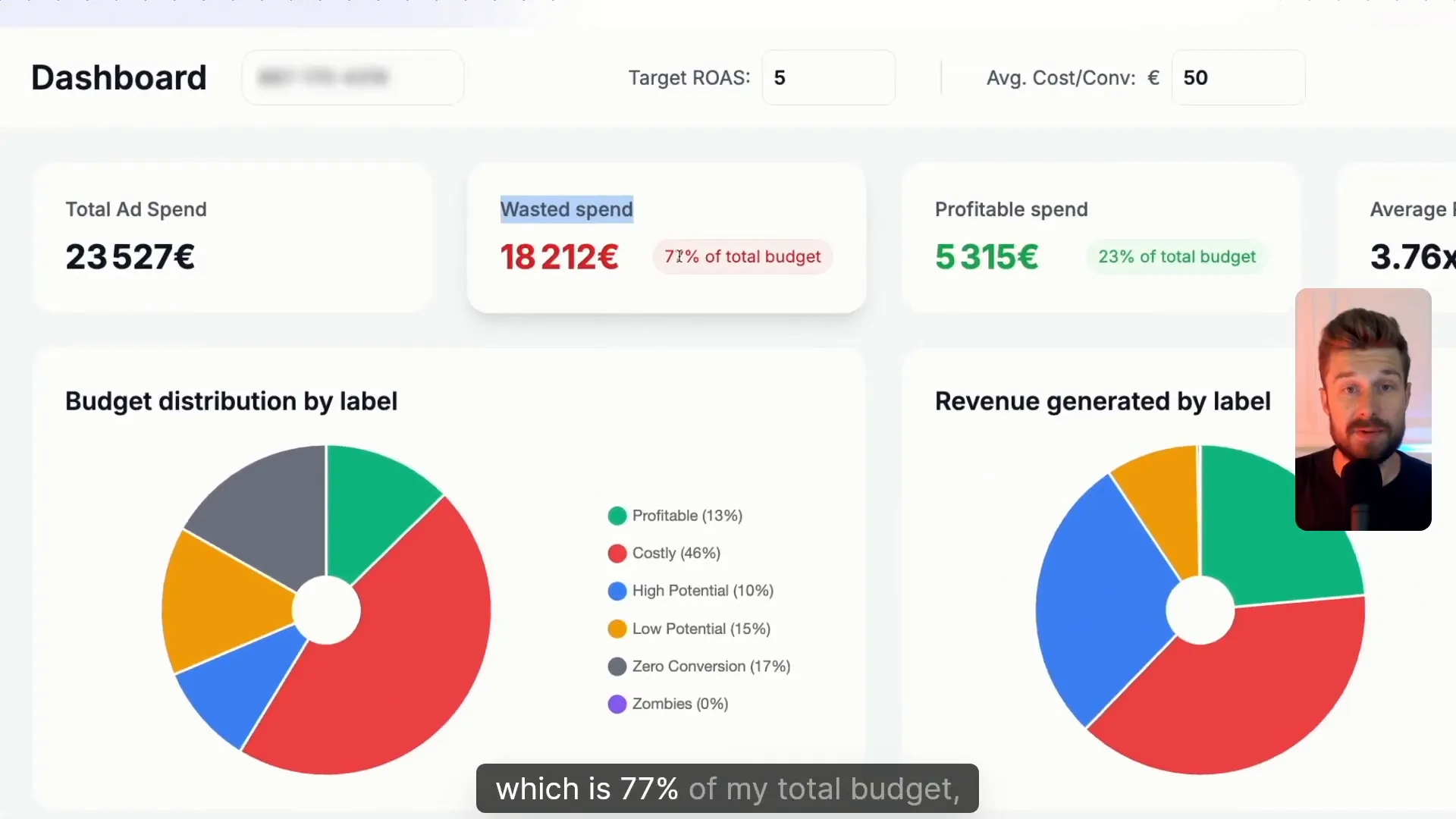
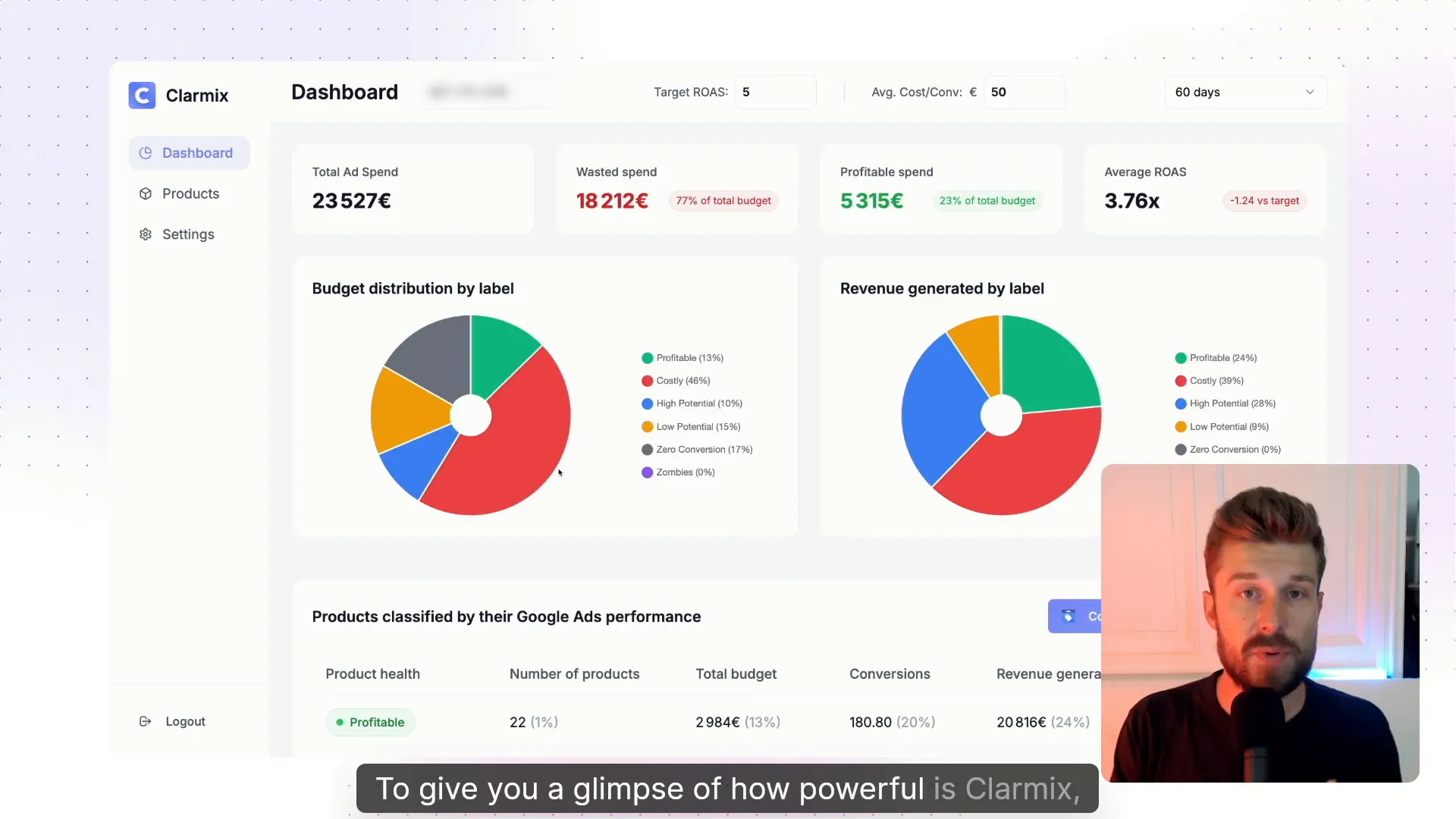
Many accounts spend a large share of their budget on products that never convert profitably. In the demo account shown, the tool audited 60 days of data and found €18,000 wasted out of €23,000 spent—77% of the budget. A fast Audit Google Ads helps you identify those costly SKUs, so you can stop wasting ad spend and focus on what works.
What the audit looks for: smart product segmentation
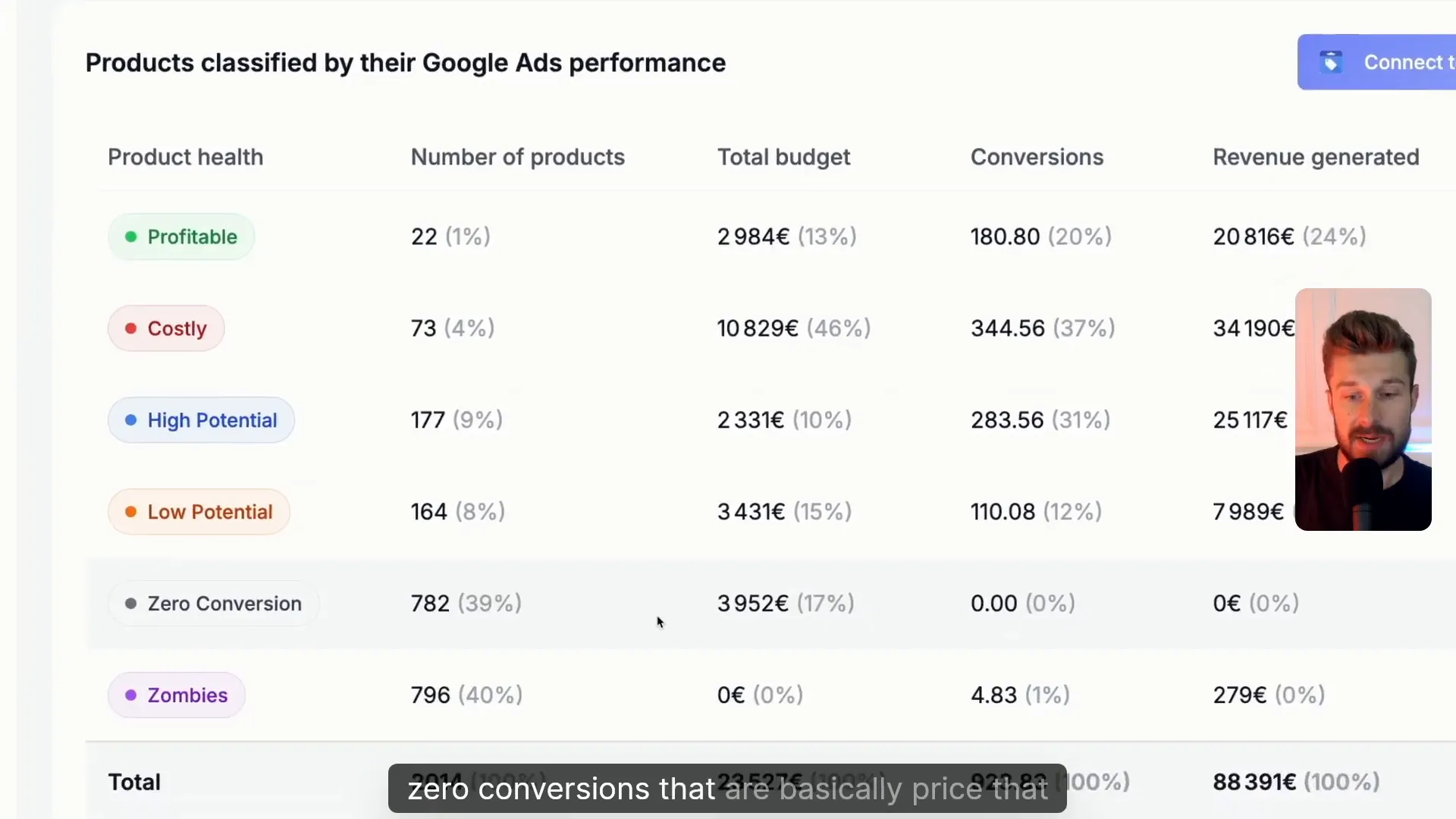
The Clarmix audit examines each SKU in your shopping feed and classifies products into clear labels. These labels let you act fast during an Audit Google Ads process:
- Profitable — products delivering acceptable ROAS.
- Costly — items that consume budget but underperform.
- High potential and Low potential — forecasts for future performance.
- Zero conversions — cost but no conversions.
- Zombie — no cost, no conversions (inactive items).
How to run a 5-minute Audit Google Ads: step-by-step
- Sign up for the free Clarix audit (no credit card required) and connect your Google Ads account.
- Set your target ROAS and an average cost per product—these thresholds drive the classification rules.
- Let Clarix audit every SKU. The system will tag products into the labels above.
- Export or sync the classifications to Google Merchant Center as custom attributes.
- Use the labels inside Google Ads to pause costly SKUs or reallocate budget to profitable ones.
Tip: once you add the custom attribute link to Merchant Center, Clamrix syncs daily so your Audit Google Ads data stays fresh.
Want to check how your Google Ads are performing? |
|
Analyse your Google Ads data for free, with not limitations! |
| Sign up for free |
What action should you take after the audit?
Options after an Audit Google Ads are flexible:
- Remove costly products from the feed.
- Set negative priorities or lower bids for low-potential or zero-conversion items.
- Create separate campaigns or budgets for high-potential products to scale profitable SKUs.
- Investigate zero-conversion items—fix landing pages, prices, or images before relisting them.
Real result example
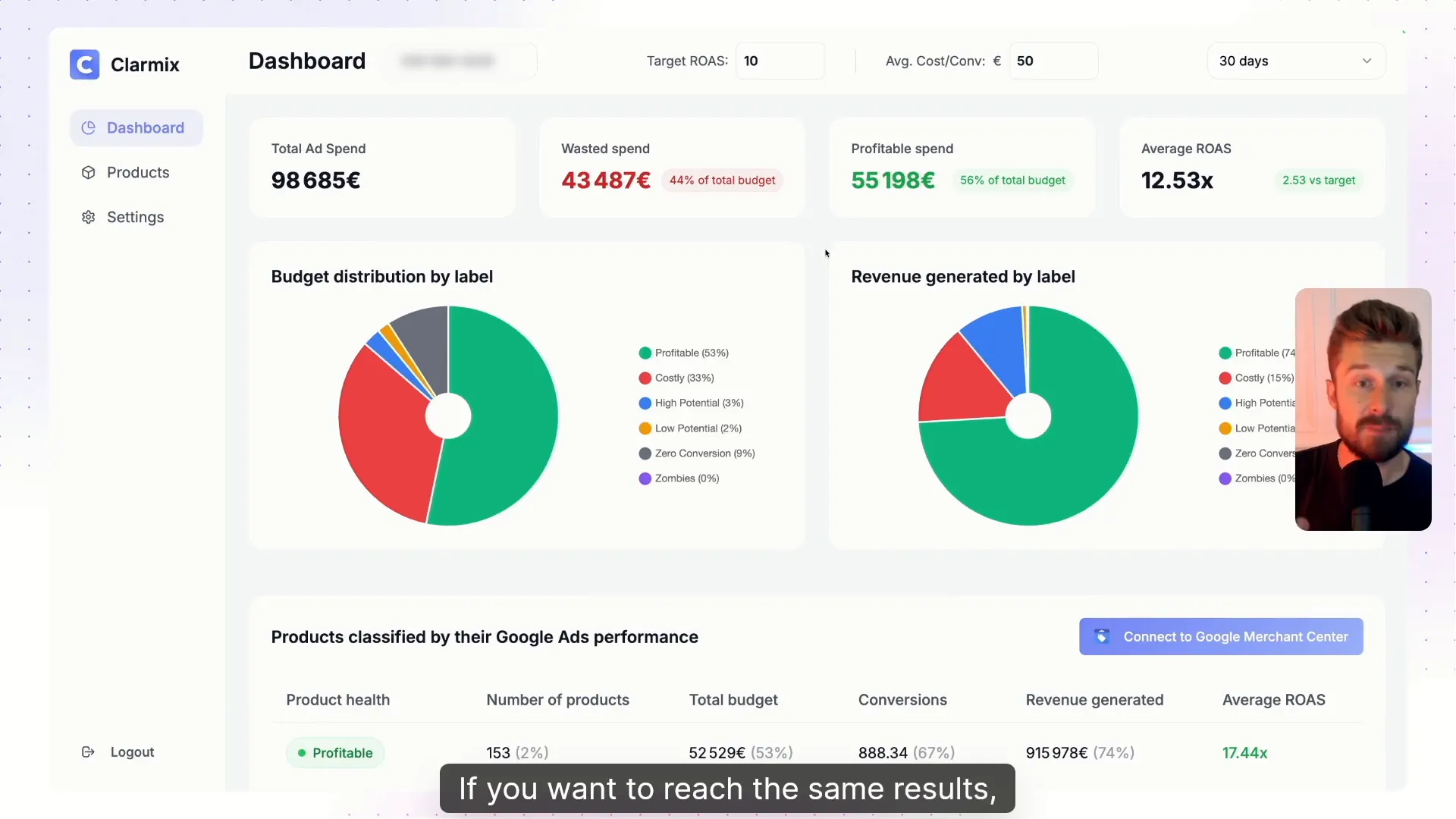
In a three-month example from the video, an account that followed this workflow saw more than 53% of its budget return to profitable products. Their average ROAS rose to 12.5 against a target of 10. This is why a focused Audit Google Ads can have an outsized impact.
5-minute Audit Google Ads checklist
- Connect Clarmix to Google Ads and Merchant Center (1–2 minutes).
- Set target ROAS and cost-per-product thresholds (1 minute).
- Run the audit and wait for SKU classification (a few seconds to minutes).
- Sync classifications to Merchant Center and review top costly SKUs (1–2 minutes).
- Pause or adjust bids for costly SKUs and reallocate budget to profitable items (1–2 minutes).
FAQ
Q: How long does an Audit Google Ads take?
A: The Clamrix system can audit an entire shopping feed in seconds; connecting and syncing to Merchant Center is the step that takes a few extra minutes. Plan for a 5–10 minute session to review and act.
Q: Do I need to share billing details?
A: No—Clarmix offers the initial audit without a credit card.
Q: Will this change my live campaigns automatically?
A: No. The tool adds custom attributes to your Merchant Center and Google Ads feed. You then decide whether to pause items, adjust bids, or remove SKUs.
Q: Can I trust the classifications?
A: The classifications are based on your historical spend, conversions, target ROAS, and cost-per-product thresholds you set. They are a data-driven starting point—review and verify before making permanent changes.
Conclusion
Auditing your Google Ads doesn't have to be slow or guesswork. A focused Audit Google Ads using a product segmentation tool like Clarmix can rapidly reveal costly SKUs, sync labels into Google Merchant Center, and help you reallocate budget to profitable products. If you want the same results shown in the demo, start a free audit with Clarmix, and review your first report in minutes.
Want to check how your Google Ads are performing? |
|
Analyse your Google Ads data for free, with not limitations! |
| Sign up for free |