Custom labels let you tag products so you can segment, bid, and prioritize the items that matter most to your business. Use them to push high-margin winners, pull back poor performers, and automate seasonal shifts — all without changing your product titles or relying on Google to guess what matters.
What are custom labels and who should use them?
Custom labels are five user-defined fields (custom_label_0 through custom_label_4) available in Google Merchant Center. Each field accepts a single value per product. They do not affect product listings visible to shoppers; instead they provide grouping metadata that you can use inside Google Ads shopping campaigns and Performance Max to filter, subdivide, bid, or exclude products.
Use custom labels if you run paid shopping ads and want:
- Better control over where budget is spent
- Bidding by margin, SKU profitability, or bestseller status
- Fast seasonal on/off switches for groups of products
- Separate campaigns for top sellers or high-ticket items
Quick overview: what custom labels let you do
- Segment products by margin, season, design, inventory status, bestsellers, or low traffic.
- Protect winners by placing them into dedicated campaigns so they do not share budget with poor performers.
- Exclude or reduce spend on underperformers with an automated process.
- Update values in bulk using a supplemental feed, scripts, or API tools.
Practical label strategies and examples
How you use each of the five labels depends on your catalog and goals. Common, high-impact examples:
- Seasonality (custom_label_0): summer, winter, holiday — makes it easy to exclude out-of-season items.
- Margin (custom_label_1): high_margin, medium_margin, low_margin — spend budget on profitable items.
- Bestsellers / Winners (custom_label_2): bestseller, trending — put these in dedicated campaigns.
- Traffic / Visibility (custom_label_3): low_traffic, high_traffic — isolate low-impression SKUs for separate optimization.
- Business flags (custom_label_4): do_not_advertise, clearance, high_ticket — prevent or reduce spend where needed.
Examples of combinations:
- Seasonal, high-margin bestsellers: Season=summer + Margin=high_margin + Bestseller=yes → push aggressively in summer campaigns.
- Low traffic SKUs: Traffic=low_traffic → exclude from main campaigns and test in a separate "low performers" campaign.
- Protect single winning SKU: Put that SKU in a campaign subdivided to the item id level to avoid budget dilution.
Decide labels first: short planning checklist
- Define what each custom_label_X means so the whole team uses them consistently.
- Limit values to short, normalized strings (use lowercase, no extra spaces).
- Map labels to actions (for example, high_margin → bid multiplier +50%).
- Decide update cadence (daily, weekly) depending on how often inventory or performance changes.
How to add custom labels (two methods)
There are two main ways to add custom labels to products: editing individual products in Merchant Center or supplying values in a supplemental feed (recommended for most stores).
Method A — Edit at the product level (small catalogs)
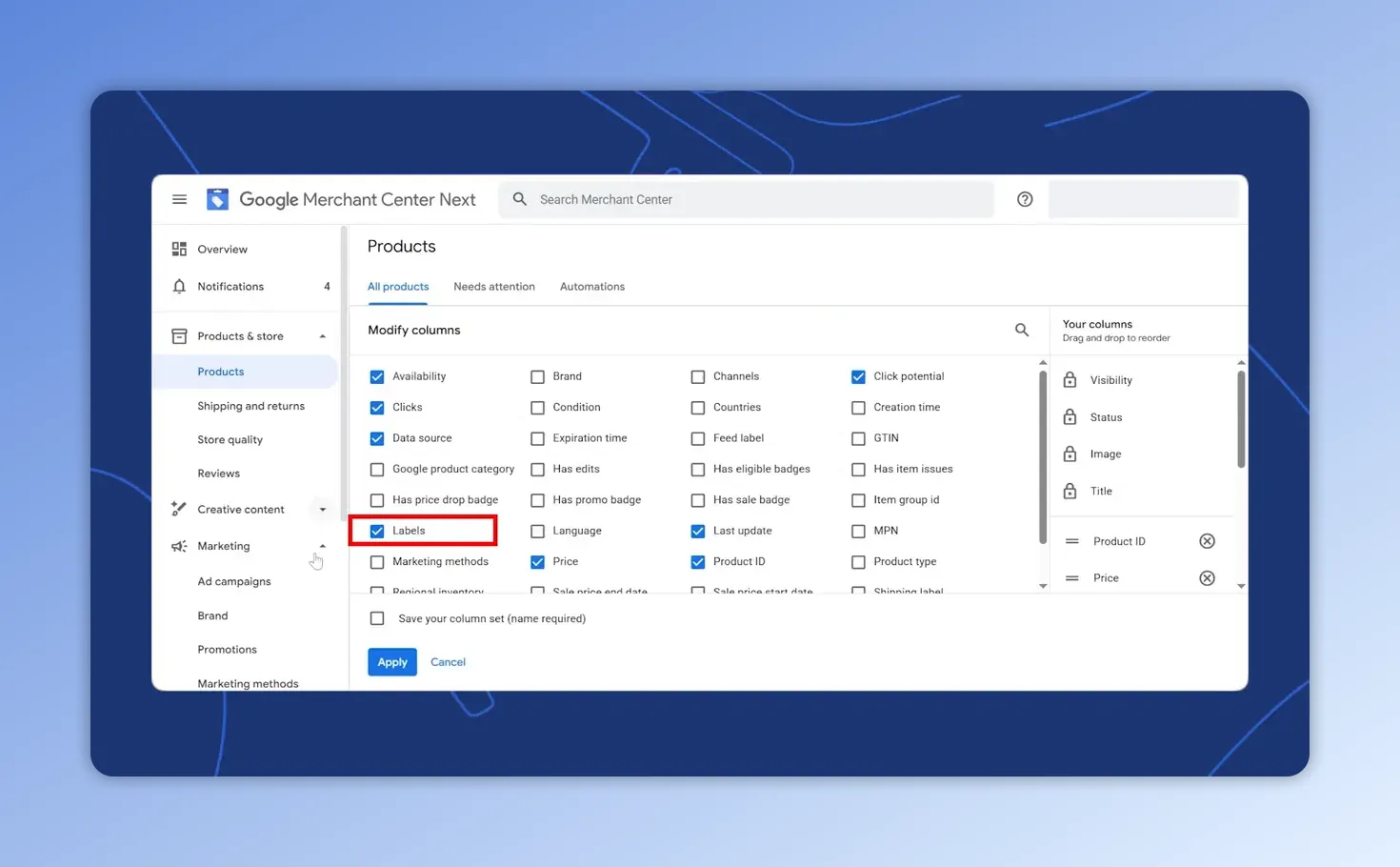
- Open Google Merchant Center and go to Products → All products.
- Enable the label columns via the columns menu if you don’t see them.
- Edit a product and set values for custom_label_0 through custom_label_4.
Method B — Supplemental feed (recommended for bulk updates)
Supplemental feeds are the fastest, cleanest way to assign labels in bulk because they merge with your primary feed using product ID as the key.
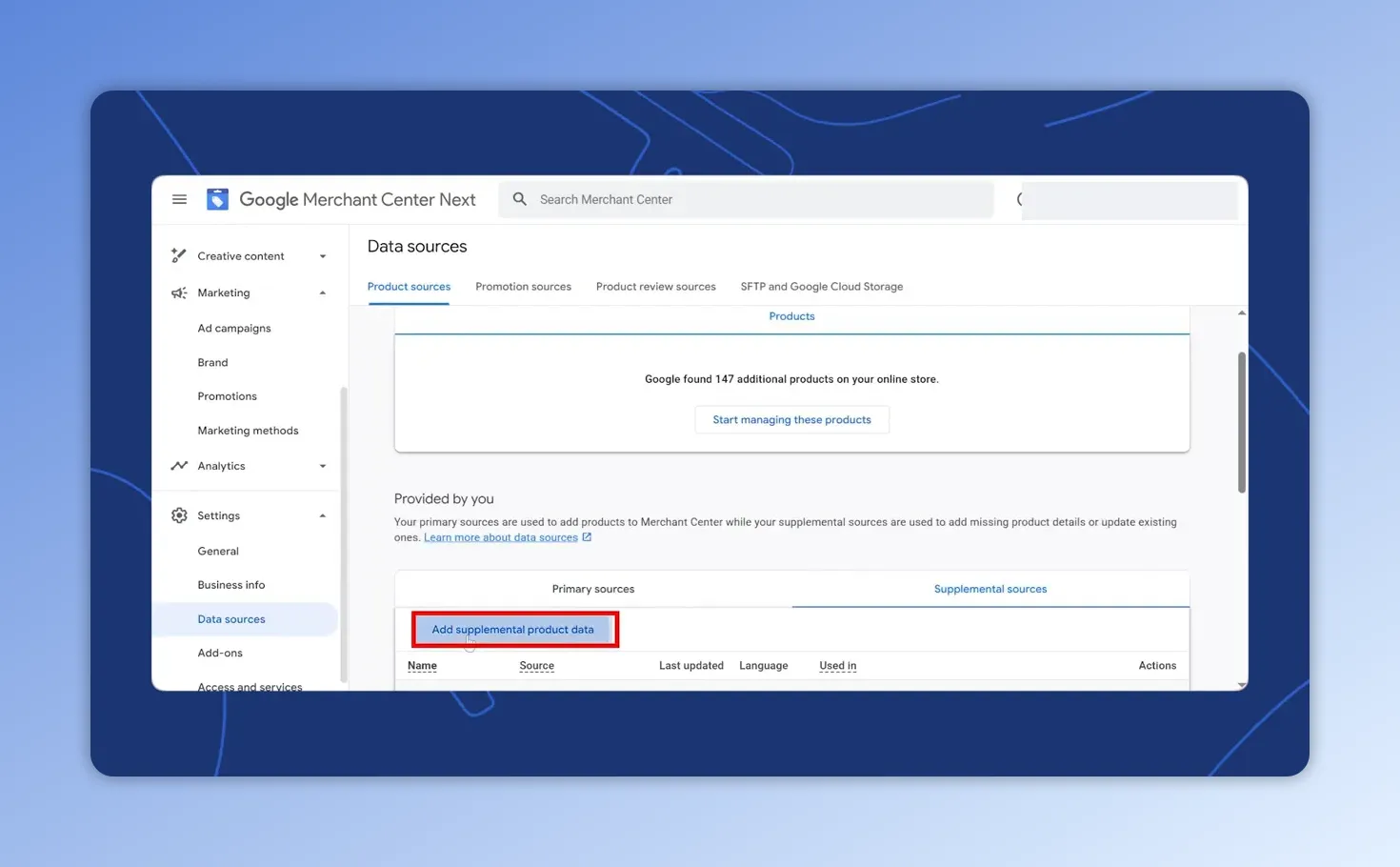
- In Merchant Center go to Data sources → Supplemental feeds → Add supplemental product data.
- Choose Google Sheets to use the Google template, or upload a CSV. Use the id column to match products to your primary feed.
- Add columns named
custom_label_0throughcustom_label_4with the values you decided in planning. - Save and schedule updates to match how often you want changes to apply.
id,title,custom_label_0,custom_label_1,custom_label_2
12345,Blue Silicone Ring,season_summer,high_margin,bestseller
12346,Black Silicone Ring,season_all,medium_margin,low_traffic
Tips for supplemental feeds:
- Include only the columns you need: id plus any custom labels you want to change.
- Keep values consistent. If you use "summer" once and "Summer" elsewhere you’ll end up with duplicate groups.
- Use the supplemental feed instead of editing the primary feed to avoid breaking automated product attributes from your e-commerce platform.
How to use custom labels inside Google Ads
Once Merchant Center contains custom label values, they are available in Google Ads for Shopping campaigns and Performance Max. Core tactics:
- Create dedicated campaigns for label values that need protected budgets (for example custom_label_2=bestseller).
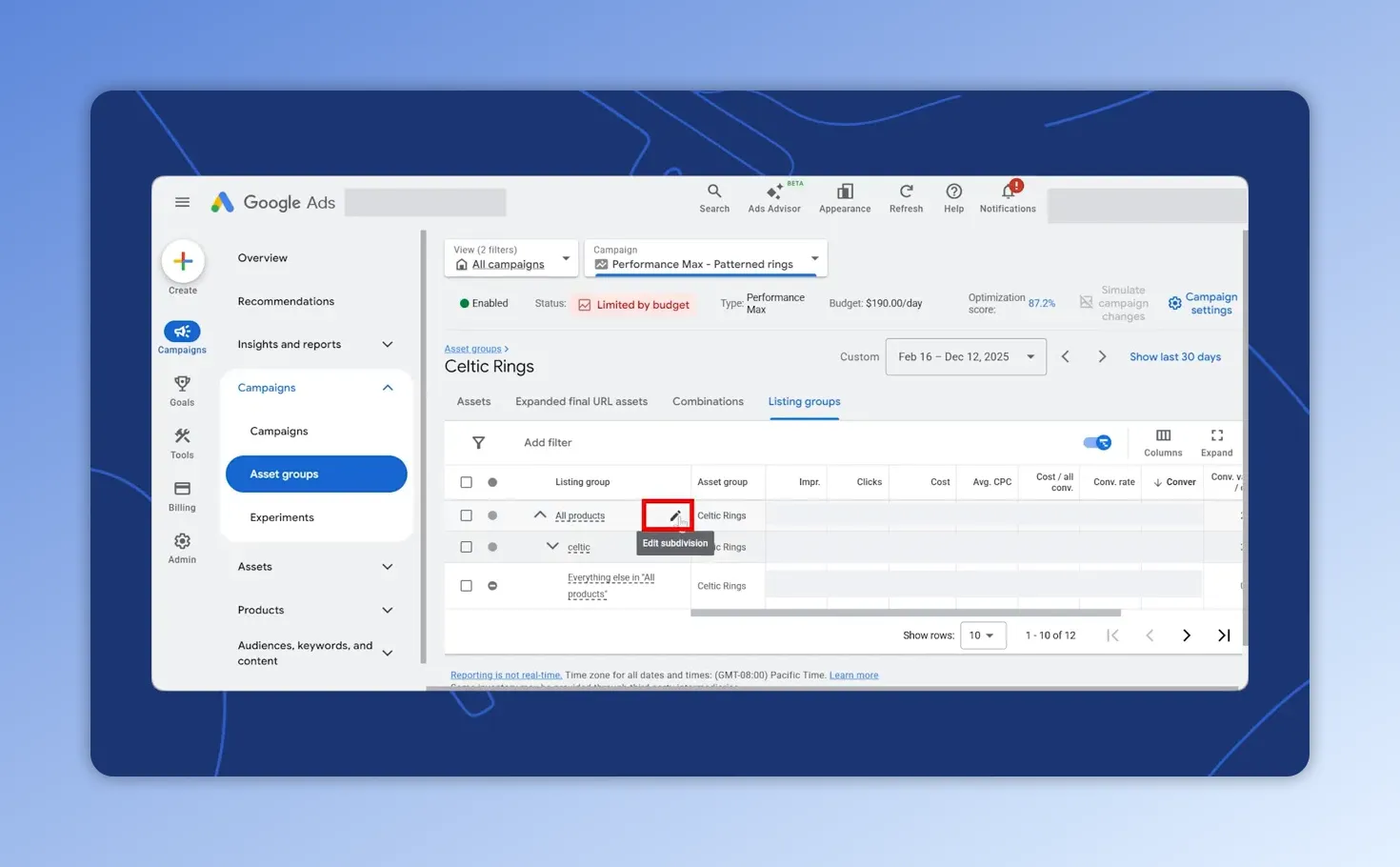
- Build product groups by subdividing All products → custom_label_X → value, then set bids for each group.
- Exclude labels from a campaign to prevent overlap (for example exclude clearance items from regular shopping campaigns).
- Subdivide winners by item id to run only exact SKUs that convert best and prevent budget sharing.
Example: Performance Max for a single bestseller
- Create a Performance Max campaign that includes only products where custom_label_2=bestseller.
- Exclude everything else from that campaign so the bestseller receives dedicated spend.
- If needed, further subdivide the group by item id to run the exact SKU that converts best.
Automation and tools for assigning label values
Three common approaches used by consultants for product labellisation (product scoring):
- Manual spreadsheets — best for small catalogs or when you need direct human judgment.
- Scripts and rule engines — tools like Flowboost or Mike Rhodes scripts can score SKUs and write label values automatically on a schedule.
- API or feed automation platforms — Clarmix, Channable, and similar platforms can compute profitability, inventory thresholds, and performance metrics and push label updates via the Content API or supplemental feed automation.
Pick the method that matches your catalog size and frequency of change. For large catalogs with frequent price, inventory, and performance shifts, automation via API or a feed management tool is usually the most scalable choice.
Common mistakes and how to avoid them
- Undefined label meanings: If labels are not documented, team members may use values inconsistently. Create a short label dictionary.
- Case and spelling inconsistencies: Use a controlled vocabulary (lowercase, no leading/trailing spaces).
- Expecting Google to infer business metrics: Google will not know margin or bestseller status — you must supply it.
- Not matching IDs: Supplemental feeds must use the exact same product id as the primary feed. Mismatching ids means changes will not apply.
- Over-segmentation: Using too many distinct label values can fragment budget. Keep groups actionable.
- Forgetting to update: Seasonal or inventory flags require regular updates; automate when possible.
Troubleshooting checklist
- Are custom_label columns visible in Merchant Center product list? If not, enable the columns view.
- Does the supplemental feed include the exact id values from your primary feed? Verify first column matches.
- Is the supplemental feed scheduled to run at the desired frequency? Check update schedule.
- Are your Google Ads product groups using the correct custom_label_X field and exact value? Double-check spelling and case.
- Did you accidentally add multiple values in one field? Each custom_label accepts a single value per product.
Quick implementation plan (30–90 minutes)
- Decide the five label uses and write down allowed values for each.
- Create a Google Sheet with columns: id, title (optional), custom_label_0..custom_label_4. Paste product ids.
- Fill label values for priority products (start with top 10% sellers and critical categories).
- Upload as a supplemental feed and schedule updates.
- Create one campaign or product group per high-priority label value and set bids accordingly.
- Monitor performance 7–14 days and refine label values and bids.
Frequently asked questions
How many custom labels can I use?
You have five custom label fields: custom_label_0 through custom_label_4. Use them strategically; labels are a finite resource.
Can a product have multiple values for the same custom label?
No. Each custom_label field accepts only one value per product. If a product fits multiple categories, choose the one that drives the decision you want in Ads, or use a different custom_label field.
Will custom labels appear in my product listing on Google?
No. Custom labels are internal metadata for Merchant Center and Google Ads only; they do not show to shoppers.
How often should I update custom labels?
That depends on how often product status changes. For margins and bestsellers you can update weekly. For inventory or time-sensitive promotions update daily or automate via API.
Final checklist before you launch
- Labels and values documented and shared with the team.
- Supplemental feed created with matching product ids.
- Values normalized (case, spelling) and limited in number.
- Campaigns and product groups mapped to label values with clear bidding rules.
- Monitoring plan in place for 14 days to measure impact and adjust.
Summary
Custom labels are a simple, high-impact lever to control where Google places your shopping budget. With five fields to work with, you can prioritize high-margin SKUs, isolate bestsellers, switch seasonal groups on and off, and reduce spend on underperformers. For most stores, the fastest path to meaningful control is a supplemental feed or automation via a feed management tool. Plan your label taxonomy, apply values consistently, and map each label to a clear campaign action for the best results.